
Enhance
Generative Expand
More photo where the crop ended
New accounts start with free credits — no card on file needed.
- 1Upload your photo and pick the ratio to grow into
- 2The AI generates scene beyond the borders, light and detail matched
- 3Check the new regions and download the uncropped result
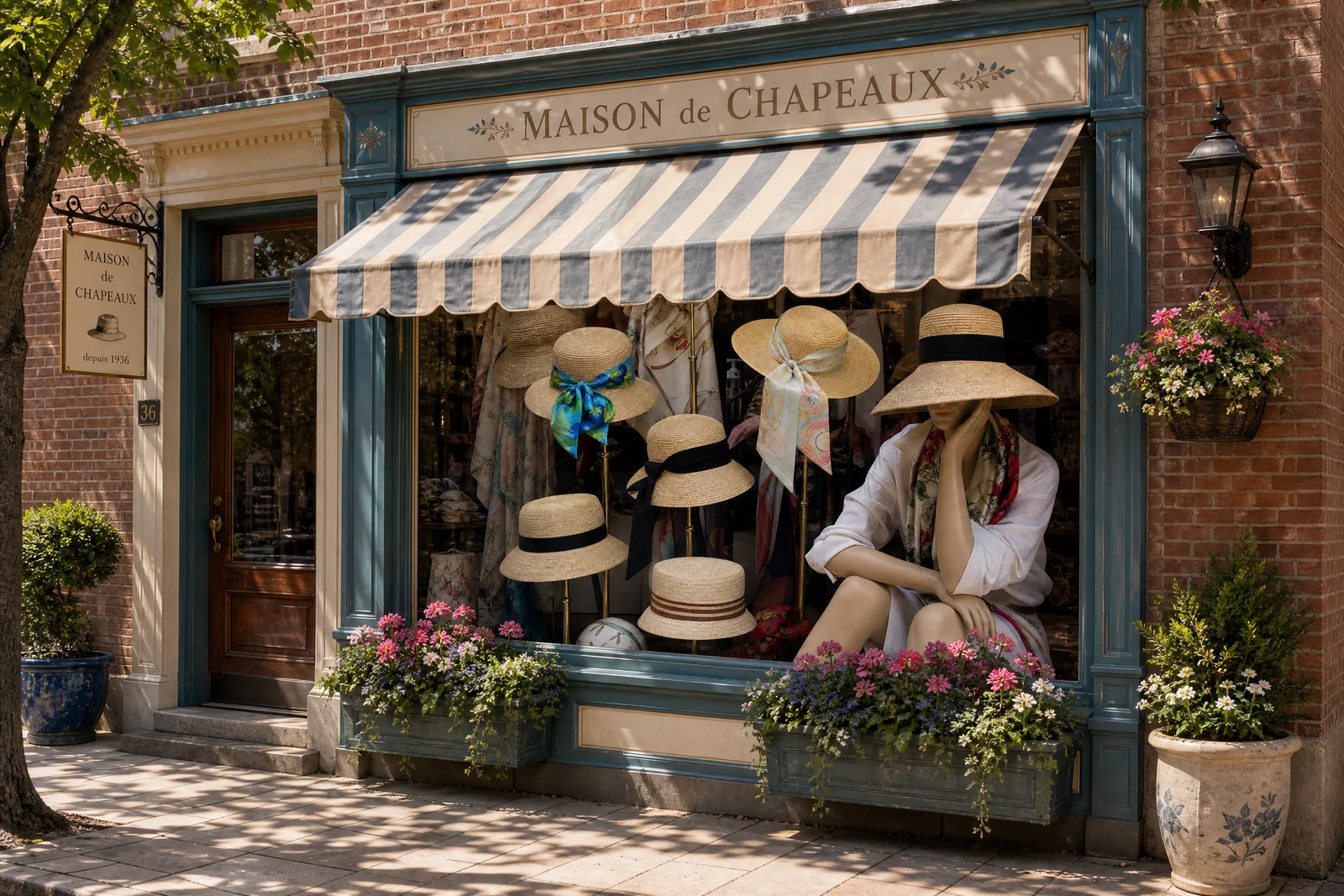
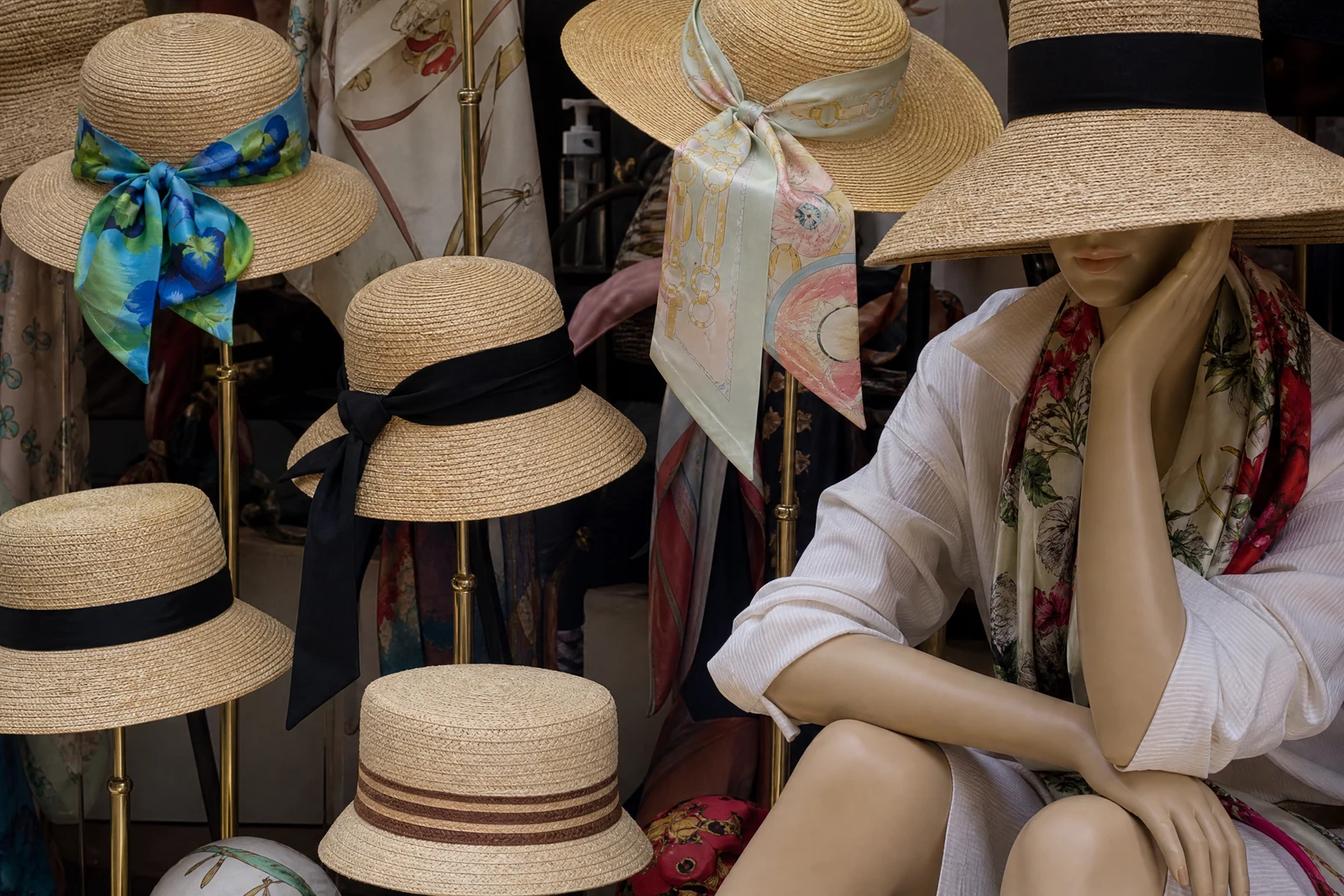
Genuine results from the tool — slide to see the difference.
The shot is right but the frame is tight: the crop clips a shoulder, the hero slot needs 16:9 and you shot portrait, the promo needs empty space for a headline that the photo doesn't have. Outpainting solves it by generating new image beyond the original borders, continuing the scene as if the camera had simply seen wider.
Your original pixels stay exactly as shot — that is the contract, and the difference from Reframe. The AI studies the frame edges and extends what it finds: skies continue with consistent cloud logic, walls and floors carry their perspective lines outward, foliage grows naturally, and lighting and color grade hold across the seam. Pick any target ratio from square to 21:9 and the expansion fills the difference.
Commercially it converts one asset into many placements: the portrait shot becomes the wide site banner, the product photo gains negative space for overlay text, the too-tight event photo recovers breathing room — seconds per conversion. Simple, continuable surroundings extend most convincingly, so glance at the generated regions before the file ships.
Why this tool
- Push the output onward through any other tool
- Standard, Pro and Max quality tiers
- Results land in your creations library
- Blow it up to print resolution or convert it to video
Frequently asked questions
What happens to my original pixels?
They stay untouched — the tool only adds generated scene outside the original borders. That's the dividing line from Reframe, which may recompose the whole frame.
What extends most convincingly?
Surroundings that extend naturally — skies, water, open fields, walls, flooring, greenery. A partially visible person at the frame edge is harder — the AI must invent what the camera never saw, so inspect those areas.
Can I expand one direction only?
Expansion follows the target ratio: 1:1 to 16:9 adds width both sides, to 9:16 adds height. For asymmetric extensions, expand then crop one side, or use Reframe.
Why not just add borders?
Borders are dead space; expansion is usable image — room for headlines, edge-to-edge hero fills, larger prints that still look photographic instead of matted.
Can I try Generative Expand for free?
Yes — every new account starts with 4 free credits, enough to run this tool once at Standard quality. No credit card required.
Related tools